
How to Use a Transparent Avatar PNG
Create and export a transparent 3D avatar PNG, add a background for your profile picture, and check the crop before uploading.
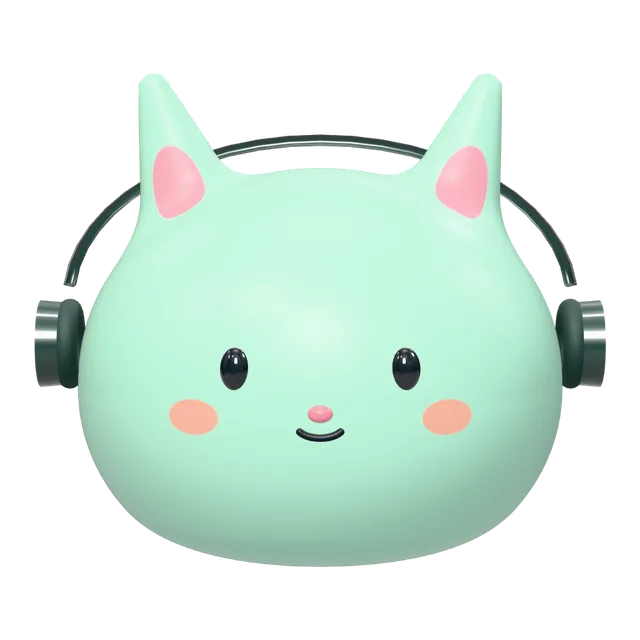
A transparent avatar PNG keeps the area around your character clear. You can place it over a colored background in a design, reuse it in a presentation, or turn it into a profile picture without cutting out the character again.
Create your avatar and export a PNG
- Open the 3D avatar editor, or start from the cat avatar maker.
- Choose a shape, color and material. Add accessories and adjust the face in Free edit. Keep the face easy to recognize at a small size.
- Rotate the preview to inspect your character. The PNG captures the view you choose, so return to the angle you want before exporting.
- Sign in and choose PNG in the studio toolbar. Each single PNG export uses 2 credits and downloads a 1024 × 1024 image with a transparent background. Editing and previews are free.
Choose a background for your profile picture
Open the downloaded PNG in a design tool that supports transparency. Put a solid color or a simple image behind it, then save the composition as a new PNG. For a pale character, try a darker background so the face remains visible.
The example below shows a mint cat on a coordinated background. The separate transparent character lets you choose your own background instead.
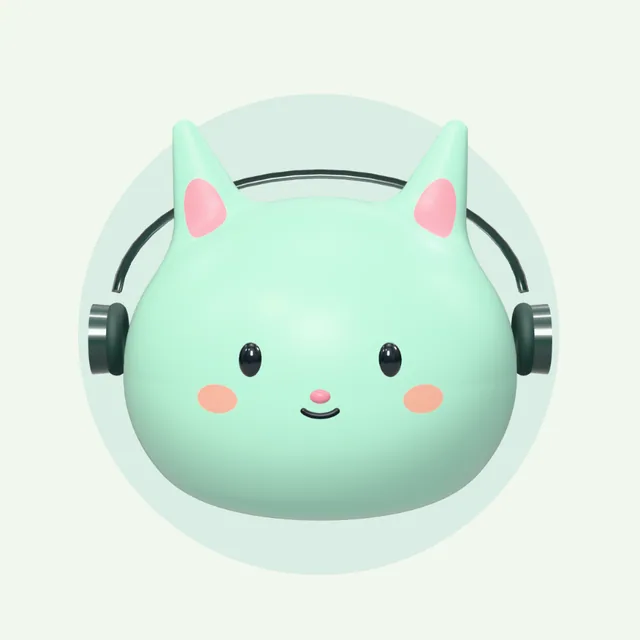
For a Discord profile picture, upload the PNG yourself and check the circular crop. Keep ears, hats and headphones away from the outer corners. Preview it at a small size before saving; details that look good at full resolution may disappear in a chat.
Use PNG for an image and HTML for a rotatable character
PNG is a static image. Choose HTML when you want to open a separate page in a browser and rotate the character. The downloaded HTML needs internet access to load its 3D library; it is not an image you can upload as a social avatar.
The editor creates characters from editable shapes. It does not remove the background from an uploaded photograph. To make an avatar inspired by a pet, choose a similar color and accessories manually.
For coordinated backgrounds, expressions and a banner, follow the avatar asset pack guide. See plans and export credits before downloading more assets.