
Discord Profile Picture Maker for Cute 3D PFPs
Make a cute Discord PFP from a bunny, cat, frog or another playful 3D character. Customize colors, materials and accessories in your browser, then rotate the preview to choose a view. Editing is free; sign in to export a square PNG with credits and upload it to Discord.
Make your Discord avatarEditing and previews are free. Sign up for 10 credits; each PNG or HTML export costs 2 credits.
Create your Discord profile picture
Animal avatars and playful shapes
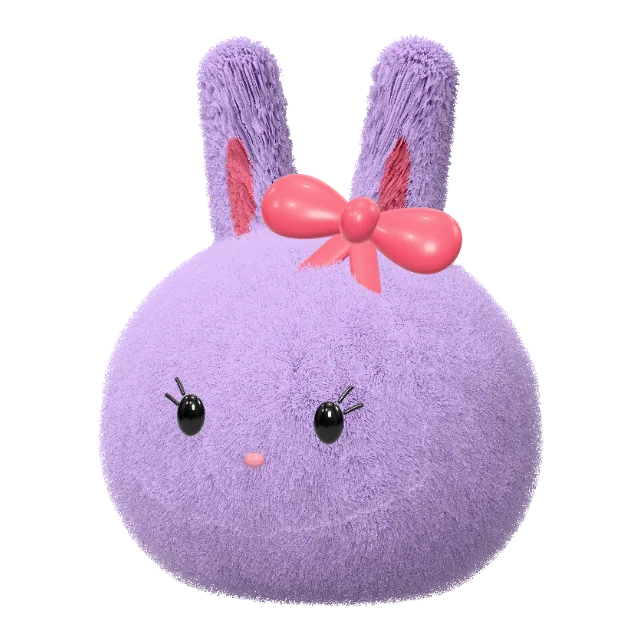
Start with a bunny, cat or frog example below. Use a simple shape and expression that stay recognizable when your avatar appears small in a chat.
Your colors, your accessories
Try a plush or clay material, choose a distinct color and add glasses, a hat or headphones. Keep the face clear of accessories that obscure it.
A square PNG to upload
Download a 1024 × 1024 transparent PNG. Upload it yourself in Discord and preview the crop so ears and accessories fit inside the profile circle.
How to make a Discord profile picture
- 01
Choose a character
Open one of the examples in the studio. Keep the starting preset or choose another animal or geometric shape.
- 02
Customize and download a PNG
Adjust colors, materials and accessories, then sign in to export a PNG with credits. Use PNG for your Discord profile; HTML is a separate interactive export.
- 03
Upload and check the crop
Open your profile settings in Discord and upload the PNG. Check the circular crop and small preview before saving your new avatar.
Pick a starting character for your Discord avatar
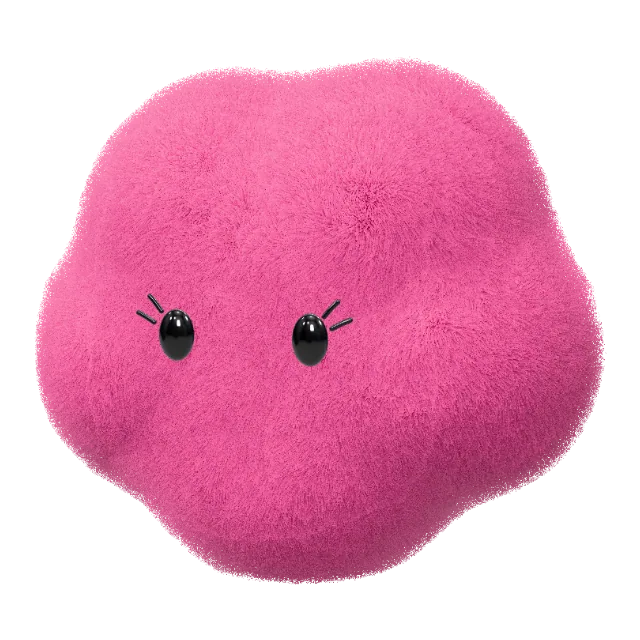
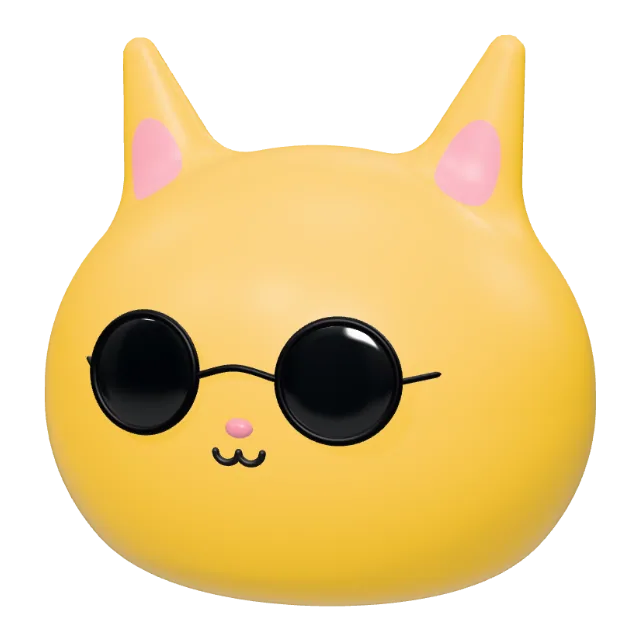
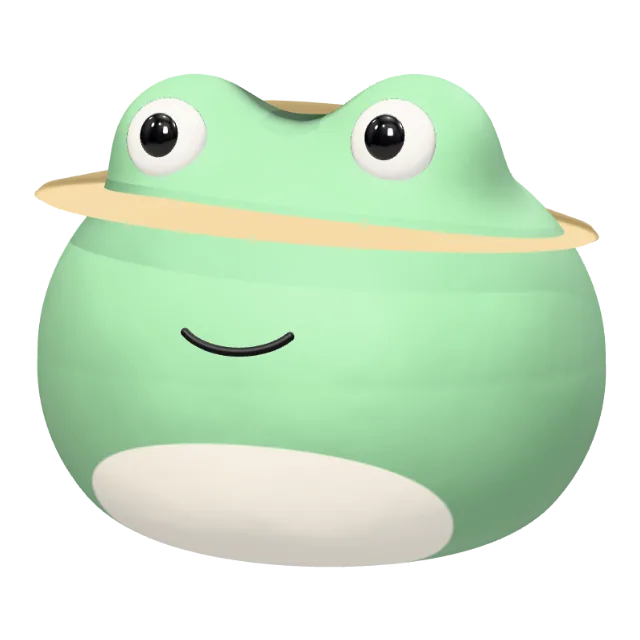
Make a square PNG for your Discord PFP
Start with an editable 3D character and export a square profile picture. The file’s square dimensions and its profile crop are two different things to check.
1024 × 1024 transparent PNG
The single-image export gives you a static square PNG with a transparent background. For a solid or patterned background, place the PNG on your own canvas, or preview a themed avatar asset pack in the studio. Exports use credits.
Keep the face clear inside the circle
Choose a front or three-quarter view, keep the face near the center, and leave room around long ears, hats and headphones. After uploading to Discord, check its crop and small preview. Use the PNG as your profile picture; the rotatable HTML is for a separate browser page.
Before you create your avatar
Put your avatar to use
Follow these guides to use your finished character in a profile, a design or a matching set of assets.
Cute Discord profile picture ideas
Try a plush bunny, headphone cat or clay frog, and choose a view that stays clear in a small profile circle.
How to use a transparent avatar PNG
Export your character, choose a background and check your profile crop.
How to make matching animal PFPs
Create two avatars with a shared palette or material, then export each separately.
Create a matching avatar and banner
Customize a theme and preview the nine PNG assets before downloading the pack.